
How to Configure SMTP Outgoing Mail Server in Odoo 18 Community
A Complete Guide to Setting Up SMTP Email for Automated Email Delivery in Odoo ERP
Odoo ERP provides integrated email functionality to support various business operations, including sending quotations, invoices, system notifications, and customer communications. To enable Odoo to send emails using a company's email address, administrators need to configure an SMTP (Simple Mail Transfer Protocol) Outgoing Mail Server.
SMTP configuration allows Odoo to communicate with email service providers such as Gmail, Microsoft 365, Zoho Mail, or a company's private email hosting server. In this article, we will guide you through the process of configuring SMTP in Odoo 18 Community Edition, from initial preparation to testing email delivery and troubleshooting common issues.
1. What Is an SMTP Outgoing Mail Server?
SMTP is a communication protocol used to send email messages from an application to an email server. In Odoo, the SMTP Outgoing Mail Server acts as a bridge between the ERP system and the email service provider.
How Email Delivery Works in Odoo
- A user creates a quotation, invoice, or another business document in Odoo.
- The user clicks Send by Email.
- Odoo generates the email message.
- Odoo connects to the configured SMTP server.
- The SMTP server processes the outgoing message.
- The message is delivered or relayed to the recipient's email server.
With a properly configured SMTP server, Odoo can send business emails directly or process them through its email queue.
2. Requirements Before Configuration
Before configuring SMTP, make sure the following information is available.
| Parameter | Description |
| SMTP Host | SMTP server address provided by the email service |
| SMTP Port | Communication port used by the SMTP server |
| Connection Encryption | Security protocol used for the connection |
| Username | SMTP authentication account |
| Password | SMTP password or application-specific password |
| Sender Email | Email address used to send messages |
| SMTP Authentication | Authentication method supported by the provider |
| Network Access | Connectivity between the Odoo server and SMTP server |
Important: Some email providers require modern authentication methods, such as OAuth 2.0, instead of traditional username and password authentication.
3. Common SMTP Server Configurations
Below are examples of SMTP settings commonly used with Odoo.
| Email Provider | SMTP Server | Port | Encryption |
| Gmail | smtp.gmail.com | 587 | STARTTLS |
| Gmail | smtp.gmail.com | 465 | SSL/TLS |
| Microsoft 365 | smtp.office365.com | 587 | STARTTLS |
| Zoho Mail | smtp.zoho.com | 587 | STARTTLS |
| Custom Email Hosting | mail.yourdomain.com | 465 / 587 | Provider-dependent |
These are general examples. Always verify the SMTP hostname, port, authentication requirements, and supported encryption methods with your email provider.
4. Step-by-Step SMTP Configuration in Odoo 18
Step 1 — Log In as an Administrator
Log in to your Odoo instance using an account with administrative permissions. Administrative access is required to configure technical settings, including outgoing email servers.
Step 2 — Activate Developer Mode
To enable technical configuration menus:
- Open Settings.
- Locate the Developer Tools section.
- Click Activate the Developer Mode.
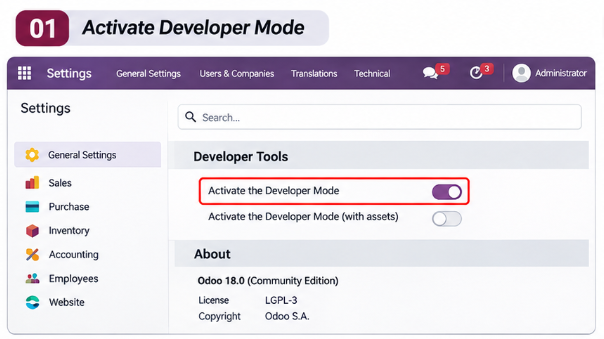
Once Developer Mode is enabled, additional technical menus become available.
Step 3 — Open Outgoing Mail Servers
Navigate to:
Settings → Technical → Email → Outgoing Mail Servers
Then:
- Open the Outgoing Mail Servers menu.
- Click New.
- Enter the SMTP server configuration.
Menu names or locations may vary slightly depending on installed modules and user access rights.
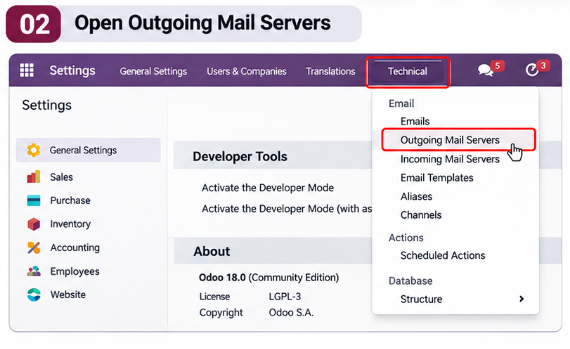
Step 4 — Configure SMTP Server Settings
For this example, we will use Gmail SMTP.
| Field | Example Value |
| Description | Gmail SMTP Server |
| SMTP Server | smtp.gmail.com |
| SMTP Port | 587 |
| Connection Encryption | TLS (STARTTLS) |
| Username | admin@company.com |
| Password | Google App Password |
| Priority | 10 |
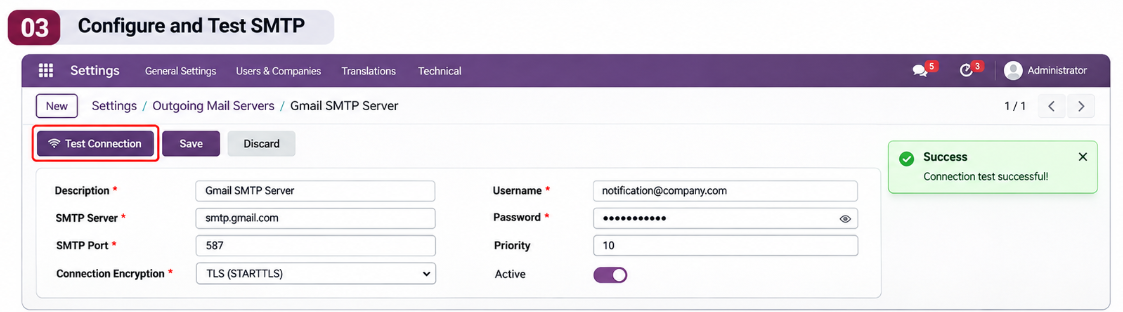
Field Descriptions
- Description : A descriptive name used to identify the SMTP configuration.
- SMTP Server : The hostname of the email provider's SMTP server.
- SMTP Port: The port used to establish the connection.
- Connection Encryption : The security mechanism used to protect communication between Odoo and the SMTP server.
- Username : The account used to authenticate with the SMTP provider.
- Password : The password or application-specific credential required by the provider.
- Priority : Determines the server selection order when multiple outgoing mail servers are configured. Additional sender filtering rules may also influence which server is selected.
Important Notes for Gmail
Gmail may require an App Password for SMTP authentication. To use an App Password, the Google account generally needs two-step verification enabled. App Password availability also depends on the account type and organizational security policies.
Important Notes for Microsoft 365
Microsoft 365 may restrict or disable traditional SMTP authentication.
Depending on the tenant configuration and supported Odoo integration, modern authentication such as OAuth 2.0 may be required. Always verify the currently supported authentication method before configuring Microsoft 365 SMTP.
Step 5 — Test the SMTP Connection
After entering the configuration:
- Click Test Connection.
- Wait for Odoo to validate the connection.
- Review the result message.
If the connection succeeds, Odoo has successfully connected to and authenticated with the SMTP server using the configured settings.
Note: A successful connection test does not guarantee that outgoing emails will reach their recipients. A real email delivery test is still necessary.
Step 6 — Save the Configuration
Click Save to store the outgoing mail server configuration.
Make sure the server is active and available for outgoing email delivery.
5. Configure the Sender Email Address
In addition to SMTP configuration, administrators should verify that the sender email address is authorized by the SMTP provider.
Example configuration:
| Setting | Example |
| SMTP Username | notification@company.com |
| Sender Email | notification@company.com |
| Company Email | info@company.com |
If Odoo attempts to send messages using an unauthorized sender address, the SMTP provider may reject the message or replace the sender address. For company domains, configure email authentication records such as:
- SPF (Sender Policy Framework): Identifies servers authorized to send email on behalf of a domain.
- DKIM (DomainKeys Identified Mail): Adds cryptographic signatures to authenticate outgoing messages.
- DMARC (Domain-based Message Authentication, Reporting, and Conformance): Defines how receiving servers should handle messages that fail domain authentication checks.
Proper email authentication helps improve email security and deliverability. When multiple outgoing mail servers are configured, also review the server selection rules and sender filters available in Odoo.
6. Test Email Delivery from Odoo
Once the SMTP connection is configured, test email delivery using an actual business transaction.
Example: Sending a Sales Quotation
- Open the Sales application.
- Select an existing quotation.
- Click Send by Email.
- Enter the recipient's email address.
- Click Send.
- Check whether the recipient receives the message.
If the email does not arrive, check the recipient's Spam or Junk folder and review the email delivery status in Odoo.
Check the Email Queue
Administrators can inspect outgoing email records through:
Settings → Technical → Email → Emails
Depending on the available interface, administrators can review email status, delivery failures, and error information. If messages remain in the outgoing queue, verify that the scheduled email processing mechanism is functioning correctly.
7. Common SMTP Errors and Troubleshooting
SMTP configuration may fail due to incorrect credentials, network restrictions, security policies, or email server configuration. The following table summarizes common issues and their solutions.
| Error / Issue | Possible Cause | Recommended Solution |
| Connection Refused | SMTP port blocked or server unavailable | Verify SMTP host, port, and firewall settings |
| Connection Timed Out | SMTP server cannot be reached | Check DNS resolution and network connectivity |
| Authentication Failed | Invalid credentials or unsupported authentication method | Verify credentials and authentication requirements |
| SMTP 535 | Authentication rejected by the provider | Check App Password, OAuth, and account policies |
| SMTP 550 | Sender or recipient rejected | Verify relay permissions, sender address, and domain configuration |
| SSL / TLS Error | Incorrect encryption configuration or certificate issue | Verify encryption mode, port, and certificates |
| Email Stuck in Queue | Scheduled processing not running or delivery failure | Check scheduled actions, email queue, and Odoo logs |
| Email Delivered to Spam | Domain authentication or sender reputation issue | Review SPF, DKIM, DMARC, and email content |
Checking Odoo Logs on Linux
If Odoo is deployed on a Linux server using systemd, administrators can monitor application logs.
Example:
sudo journalctl -u odoo -f
Replace odoo with the actual service name configured on your server. The logs can help identify authentication failures, connection problems, and email delivery errors.
8. SMTP Configuration Best Practices
To ensure secure and reliable email delivery, consider the following recommendations.
Use a Dedicated System Email Account
Use a dedicated email address, such as:
notification@company.com
This prevents automated business communication from depending on an individual employee's personal account.
Enable Secure Connections
Always use STARTTLS or SSL/TLS according to your email provider's requirements. Avoid unencrypted SMTP connections whenever possible.
Use Secure Authentication
Prefer application-specific passwords or modern authentication mechanisms when supported. Avoid storing or sharing primary account passwords unnecessarily.
Configure Domain Authentication
Implement SPF, DKIM, and DMARC to improve domain authentication and reduce the risk of email spoofing.
Monitor Outgoing Email Queues
Regularly review failed messages, pending email queues, and related scheduled actions.
Restrict Administrative Access
Only authorized administrators should have access to SMTP credentials and outgoing mail server configurations.
Test After Configuration Changes
Whenever SMTP credentials, email domains, provider settings, or authentication policies change, perform connection and delivery tests.
9. Conclusion
Configuring an SMTP Outgoing Mail Server is an essential step in enabling email communication within Odoo ERP. With the correct configuration, Odoo can send quotations, invoices, notifications, and other business communications directly from the ERP platform.
However, successful SMTP configuration involves more than entering a server address and password. Administrators must also consider authentication methods, connection security, sender authorization, domain authentication, and email queue monitoring. By following the configuration steps and best practices outlined in this guide, businesses can establish a more reliable email delivery process integrated with Odoo 18 Community Edition.
Need Help Configuring Odoo ERP?
DUO Digital Solusindo provides technology solutions to help businesses implement, customize, integrate, and optimize Odoo ERP.
Whether you need SMTP configuration, custom module development, system integration, or ERP implementation services, our team can help you identify an approach that fits your business requirements.
Contact Us | Consult Our Odoo ERP Specialists